
Components
Every component you can use in a guide. Each one shown live, with the code to copy.
The wiki has a small set of components you can drop into any guide. The draft editor's toolbar inserts them for you. This page is the full reference. Each section shows the component first, then the code that makes it.
Callout
A colored box for warnings, tips, and the Korea/China safety note. Use
type="danger" for real risk, info for tips, warning for "this can
go wrong", and success for confirmation.
You can skip this step if you already installed the tool.
Saving over the original file cannot be undone. Make a copy first.
The anti-cheat there blocks all mods. Accounts get banned.
A green checkmark appears when the skin is ready.
<Callout type="danger" title="Don't use custom skins in Korea or China">
  The anti-cheat there blocks all mods. Accounts get banned.
</Callout>
Props:
typeisinfo,warning,danger, orsuccess. Defaults toinfo.titleis optional. Each type has a default title.
There are also three level types for marking difficulty inside a page:
lvl_beginner, lvl_intermediate, and lvl_advanced. For a small
difficulty badge at the top of a guide, use LevelPill
instead.
Tabs
Alternative paths. Use tabs for operating-system-specific steps or
tool-specific workflows. Every <Tabs> needs a closing </Tabs>, and
every <Tab> a closing </Tab>.
<Tabs items={["Windows", "macOS"]}>
  <Tab value="Windows">Windows steps here.</Tab>
  <Tab value="macOS">macOS steps here.</Tab>
</Tabs>
Accordion
Collapsible sections. Good for FAQs and optional detail.
<Accordions>
  <Accordion title="Question here">Answer here.</Accordion>
</Accordions>
Image
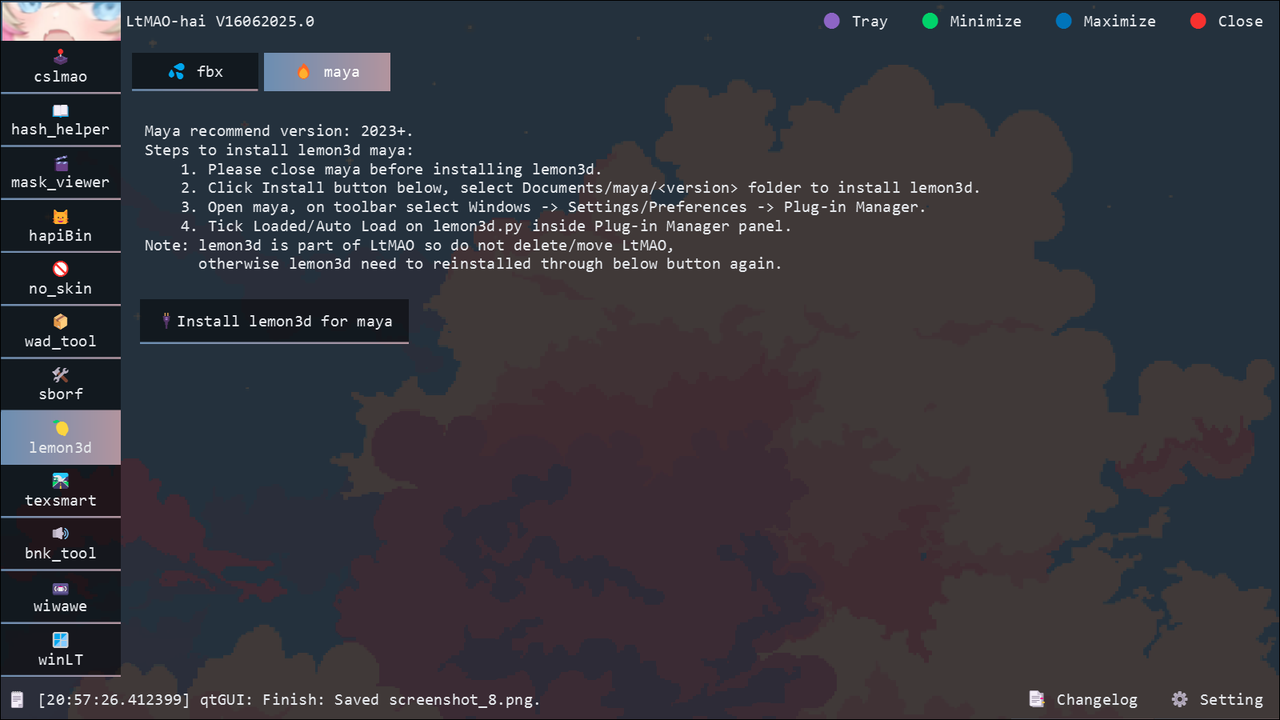
A screenshot. alt text is required. Reviewers reject images without
it. Keep files under 500 KB and put them in public/wiki-images/.
Readers can click any image to zoom it.
<img
  src="/wiki-images/your-screenshot.png"
  alt="Short description of the image"
/>
Code block
A fenced code block. Add a language after the opening fence for highlighting.
npm run dev```bash
npm run dev
```Table
A Markdown table. Keep it to a few columns so it reads on mobile.
| Column A | Column B |
|---|---|
| Value | Value |
| Column A | Column B |
| -------- | -------- |
| Value    | Value    |
ToolCard
A single tool row with a name, a link, and a one-line description. Use it on tool list pages.
FlintAll-in-one skin creation tool.
Recommended<ToolCard
name="Flint"
href="/docs/lol/tools/modding-apps/flint"
badge="Recommended"
>
All-in-one skin creation tool.
</ToolCard>Props:
nameandhrefare required. External links open in a new tab.badgeis optional. It renders as a small pill on the right.
LevelPill
A difficulty marker. Put it at the top of a guide, right under the
title. level is beginner, intermediate, or advanced.
<LevelPill level="beginner" />Use the optional label prop to change the text:
<LevelPill level="advanced" label="Expert" />.
ParameterList
A two-column name/description table for reference pages.
| Name | Description |
|---|---|
| champion | The champion the skin belongs to. |
| skin_id | The numeric id of the base skin. |
<ParameterList
  parameters={[
    { name: "champion", description: "The champion the skin belongs to." },
    { name: "skin_id", description: "The numeric id of the base skin." },
  ]}
/>
PremiumCard
A prominent card with a gradient border for one featured link. Use it to point readers at the most important next page.
Start here if you are new. One path from empty folder to finished skin.
<PremiumCard title="Guided walkthrough" href="/docs/lol/guided-walkthrough">
  Start here if you are new.
</PremiumCard>
GlowCTA
A glowing call-to-action button. Use it for the one action you want the reader to take. One per page at most.
Browse the guides<GlowCTA href="/docs/lol">Browse the guides</GlowCTA>Props:
variantisprimary(purple glow, default),solid,secondary, orghost.sizeismd(default) orlg.
YouTube
An embedded YouTube video. Pass the video id, not the full URL. The id
is the part after watch?v= or youtu.be/.
<YouTube id="xqB84ga55hI" title="What the video shows" />Props:
idis required.titledescribes the video for screen readers.startis optional. It starts playback at that second.
Shortcut: paste a plain YouTube link on its own line and the wiki turns it into an embed for you.
Icon
An inline icon. Use any Lucide icon name,
or one of the brand names: Maya, Blender, Discord,
LeagueOfLegends.
<Icon name="Wrench" />Use the optional className prop to change the size, for example
className="size-4".